
December 25, 2025
⯀
17
min


When it comes to improving your app's performance in app stores, A/B testing is a game-changer. Apple and Google both offer tools to test different elements of your app's store listing, but their approaches differ significantly. Here's what you need to know:
Key Differences:
Quick Comparison:
| Feature | App Store PPO | Google Play Experiments |
|---|---|---|
| Testable Elements | Icons, Screenshots, Videos | Icons, Screenshots, Descriptions |
| Approval Required | Yes | No |
| Max Concurrent Tests | 1 | 1 Default, 5 Localized |
| Confidence Level | Fixed at 90% | Adjustable (90%, 95%, 98%) |
| Duration | Up to 90 days | No set limit |
Both platforms provide valuable insights, but their tools cater to different needs. Use Google Play for faster iteration and text testing, and Apple for controlled, visual-focused experimentation.
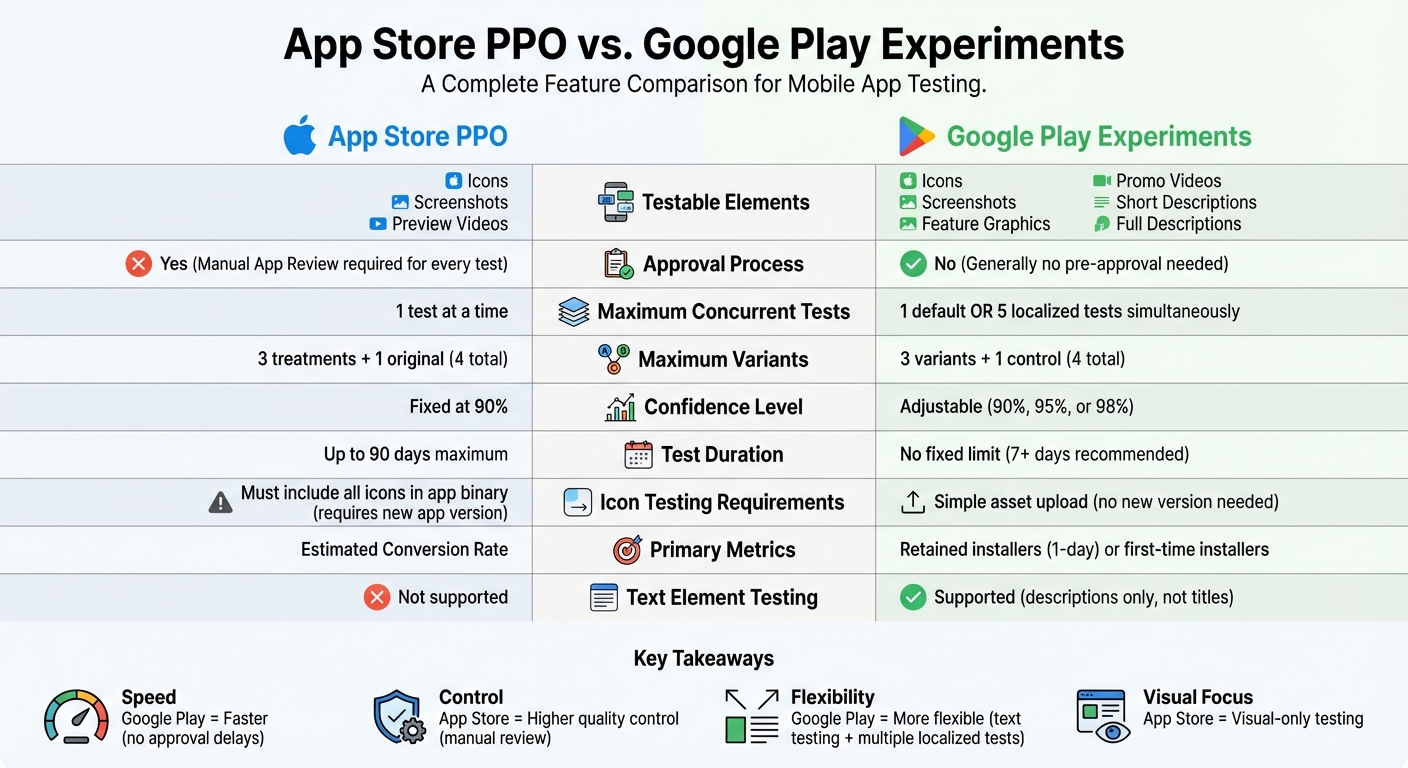
App Store vs Google Play A/B Testing Feature Comparison
Apple's Product Page Optimization (PPO) is an A/B testing tool integrated into App Store Connect. It allows developers to experiment with different creative assets for their app to determine which versions drive more downloads. Using Bayesian methods, PPO performs daily confidence checks to evaluate performance. Here's a closer look at what you can test and how to set it up.
PPO lets you test various creative assets, including app icons, screenshots, and app preview videos. You can create up to three alternative versions (called treatments) alongside your original design, with traffic evenly distributed among all versions. For example, if you allocate 30% of your app's traffic to the test, each treatment will receive 10%. These tests can target all users or specific localized markets.
Testing app icons requires including all alternate designs in the app binary, while screenshots and videos can be updated without releasing a new app version. Every new asset must go through App Review before testing begins. Once a treatment reaches at least 90% confidence, it is flagged as "Performing Better" or "Performing Worse." You can then set the winning treatment as the default product page for all users.
Case studies highlight the impact of PPO. For instance, Peak Brain Training ran a 44-day test with 154,000 impressions per treatment, comparing four icon designs. An icon featuring a brain design outperformed others, achieving an 8% higher conversion rate with 98% confidence. Similarly, Simply Piano tested the impact of removing an app preview video. Over a 12-day test with 430,000 impressions per treatment, the version without the video performed 3.3% better.
PPO does come with some limitations. You can only run one test at a time per app, and tests have a maximum duration of 90 days. If a test doesn’t meet the 90% confidence threshold within that period, App Store Connect may flag it as inconclusive. Additionally, results only appear in App Analytics after at least five first-time downloads are recorded. Tests are visible only to users running iOS 15, iPadOS 15, or later.
Releasing a new app version will automatically end any active PPO test. This means you need to carefully plan your testing schedule around app updates. For example, even if a new icon design wins, it can’t be implemented immediately; it must be included in the next app version submission.
Another limitation is that PPO doesn’t support testing text elements like titles, subtitles, or descriptions - it’s restricted to creative assets. For accurate results, it’s best to test one type of asset at a time and run tests for at least a week to account for differences in weekday and weekend traffic patterns. These constraints are important to understand before comparing PPO with Google Play’s testing tools.
While PPO focuses on optimizing creative assets for organic traffic, Custom Product Pages (CPP) are designed for paid campaigns. CPPs let you create up to 70 unique product page versions, each with its own URL. These can be used in Apple Search Ads, social media ads, or email campaigns.
CPPs offer more flexibility than PPO. You can customize screenshots, app previews, and even promotional text - something PPO doesn’t allow. Developers have reported conversion rate improvements averaging 2.5 percentage points with CPPs, compared to 1.6% on default pages. This represents a 156% improvement. Additionally, CPPs help isolate traffic from paid campaigns, ensuring that organic A/B testing data remains unaffected by high-volume ad traffic. Like PPO, CPP assets require App Review approval, but they can be submitted independently of a new app version.
This breakdown of PPO and CPP provides a solid foundation for comparing these tools with Google Play’s testing features.
Google Play's Store Listing Experiments let developers test both visual and textual elements right from the Play Console. This tool allows you to experiment with app icons, feature graphics, screenshots, promo videos, short descriptions, and full descriptions - all aimed at improving app performance. However, one limitation is that the app title itself cannot be tested.
Google Play offers two types of experiments. Default graphics experiments let you test visual assets globally for the app's default language, but only one experiment can run at a time. On the other hand, localized experiments allow testing both graphics and text across up to five languages simultaneously. For instance, you could test a new icon in English, updated screenshots in Spanish, and revised descriptions in French - all at the same time.
To set up an experiment, head to Grow users > Store presence > Store listing experiments in the Play Console. From there, name your experiment and decide whether you’re testing the main store listing or a custom one. Next, choose your target metric - either first-time installers or retained installers - and set the audience percentage. You can upload up to three variants along with the control version.
You'll also need to configure statistical parameters, such as the Minimum Detectable Effect (MDE), which ranges from 0.5% to 6%, and the confidence level (90%, 95%, 98%, or 99%). For example, a 90% confidence level means there’s a 1-in-10 chance of a false positive. Only users signed into their Google accounts on Google Play are included in these experiments; others will continue to see the original listing.
The results of these experiments can be impressive. Kongregate, for instance, increased installs by 45% through store listing testing, while Tapps Games and Pincer Games each saw about a 20% boost in installs and conversions. These numbers clearly show the value of using data to guide creative decisions.
While Google Play's testing framework is powerful, it does come with some limitations. Only one default graphics experiment can run at a time, though up to five localized experiments can operate simultaneously. Each experiment is limited to testing three variants against the control version. Additionally, experiments are only available for published apps, so pre-launch testing isn’t an option.
Another challenge is that Google Play combines all store visitors - whether they come from search, explore, or ads - into the experiments. This makes it harder to separate results by traffic source, which can complicate analysis when you’re running both paid and organic campaigns. Moreover, the platform doesn’t provide data on in-app purchases, revenue, or the long-term value of users from specific variants.
That said, unlike Apple’s PPO, Google Play allows you to test graphics and descriptions without releasing a new app version. This flexibility makes it easier to experiment and refine your store listing.
Once your experiment is up and running, Google Play tracks two key metrics: first-time installers (users who install the app for the first time during the test) and retained installers (users who keep the app for at least 24 hours). The retention metric is particularly valuable because it focuses on user quality rather than just quantity.
The Play Console provides both current data (actual user counts) and scaled data (adjusted for audience share to ensure fair comparisons when variants receive different traffic volumes). At the end of the test, outcomes are categorized as "Apply winner", "Keep current listing", "Draw", or "More data needed". To get accurate results, experiments should run for at least seven days to account for differences in user behavior between weekdays and weekends.
"To give developers more control and statistical robustness we've recently made some changes to store listing experiments in Play Console. We've added three new capabilities: experiment parameter configuration; a calculator to estimate samples needed; and confidence intervals."
- Google Play Console Support
Both Apple’s App Store Product Page Optimization (PPO) and Google Play Store Listing Experiments offer A/B testing, but their methods couldn’t be more different. Apple leans heavily on control and quality with its manual review process, while Google prioritizes flexibility and speed. Here’s a side-by-side comparison:
| Feature | App Store Product Page Optimization (PPO) | Google Play Store Listing Experiments |
|---|---|---|
| Testable Creatives | Icons, Screenshots, Preview Videos | Icons, Feature Graphics, Screenshots, Promo Videos |
| Testable Metadata | None | Short & Full Descriptions (localized tests) |
| Max Concurrent Tests | 1 test | 1 Default or 5 localized tests |
| Max Variants | 3 treatments + 1 original | 3 variants + 1 control |
| Approval Required | Yes, for every test | Generally no |
| Confidence Level | Fixed at 90% | Adjustable (90%, 95%, or 98%) |
| Icon Testing | Requires icons in the app binary | Simple asset upload |
| Primary Metric | Estimated Conversion Rate | Retained installers (1-day) or first-time installers |
| Duration | Up to 90 days | No fixed limit (7+ days recommended) |
The strengths of each platform become clear when you look beyond the table and dive into the details.
Apple’s approach is all about quality control. Every test variant goes through a manual App Review process before it can run, ensuring that all creative elements meet Apple’s high standards. This rigorous system uses Bayesian methods to identify winners efficiently. However, testing icons on Apple requires embedding alternative icons into the app binary, which means careful coordination with your app’s release schedule is a must.
On the other hand, Google Play stands out for its flexibility. It allows you to test not only visuals but also text elements like short and full descriptions - without needing to release a new app version. You can even run up to five localized experiments at the same time, making it a great option for apps targeting diverse markets. Icon testing is much simpler too, as it only requires uploading assets. Additionally, Google gives you control over the confidence level, letting you choose between 90%, 95%, or 98%.
One of the most significant differences is metadata testing. Google Play enables controlled experiments for text elements, a feature that Apple’s PPO lacks. On iOS, text changes must go live to be measured, making it harder to test and refine messaging compared to Android’s controlled environment.
To get the most out of A/B testing on both app stores, it's crucial to follow some tried-and-true practices. Start by testing one element at a time - this helps you pinpoint exactly what's driving changes in performance.
Run each test for at least seven days to gather enough data for meaningful results. Both platforms generally require a confidence level of 90% or higher to declare a winner.
When it comes to dividing traffic, a 50/50 split between the control and the variant is the standard for quicker statistical significance. However, if you're testing a high-risk change, like a completely new app icon, you might want to start smaller, allocating just 10–20% of your traffic to the variant. This minimizes the risk of any major negative impact.
"Higher conversion doesn't necessarily mean more money. In extreme cases, it could mean less. So you have to watch revenue!" – Ariel, Appfigures
Keep an eye on what happens after users install your app. A variant that boosts downloads might also lead to higher uninstall rates. On Google Play, the metric "Retained first-time installers" is especially useful for evaluating the quality of users you're attracting.
Apple's A/B testing focuses entirely on visual elements like app icons, screenshots, and app preview videos. That means your screenshots need to do the heavy lifting, clearly communicating your app's value through compelling captions and imagery.
If you're testing different app icons on iOS, remember that all icon variants must be included in your app's binary, and you'll need to submit a new version of your app to begin the test. On Google Play, the process is simpler - you can upload icon variants directly through the Google Play Console.
Another important difference is timing. Apple's App Review process can delay tests by 1–3 days, while experiments on Google Play can usually start almost immediately. However, keep in mind that only logged-in Google users will see experimental variants; guest users will always see the control.
To make the most of A/B testing on both platforms, use insights from one store to inform your strategy on the other. For example, Google Play allows you to test text elements like app titles and descriptions. If a particular message performs well there, you can adapt it for use in your App Store screenshots or other visual assets.
That said, don't assume a winning variant on one platform will automatically work on the other. User behavior and store layouts differ significantly. For instance, Android users are 27% less likely to engage with store listing images compared to iOS users. This means a strategy that excels on one platform might fall flat on the other.
When testing on both platforms, keep the experiments independent by focusing on elements unique to each store. This approach allows you to gather valuable insights without compromising the integrity of your tests. If your app targets multiple markets, Google Play offers an edge by letting you run up to five localized experiments at the same time, while Apple limits you to one test per app.
Finally, if you're managing A/B tests across both platforms, tools like Dots Mobile (https://dots-mobile.com) can streamline the process, helping you implement winning versions while respecting the specific requirements of each store.
When it comes to testing app elements, the App Store and Google Play have distinct rules. On the App Store, only visual elements like icons, screenshots, and preview videos can be tested - text elements such as titles or descriptions are excluded. Google Play, on the other hand, allows testing of both visuals and text, although the app title is off-limits.
Another key difference lies in how icon variants are handled. The App Store requires all icon variants to be bundled into the app binary, meaning you’ll need to release a new app version for testing. Google Play makes this process easier by letting you upload icon variants directly through the Play Console, with no need for a new build.
Delays can also occur with the App Store since every test variant must pass App Review before the experiment can begin. In contrast, Google Play reviews variants only after you’ve decided to apply a winning version to your store listing.
Testing capacity differs as well. The App Store allows just one test at a time, with a maximum duration of 90 days. Google Play offers more flexibility, supporting one default experiment or up to five localized experiments simultaneously. Furthermore, App Store test variants are visible only to users on iOS 15 or later, whereas Google Play includes users signed into their Google accounts.
These platform-specific constraints play a major role in shaping the quality and interpretation of your test results.
Both platforms operate with a fixed 90% confidence level, which means there’s always a 10% chance of false positives.
Google Play experiments can be tricky to interpret because they mix traffic from multiple sources - like search, explore, and ads - making it hard to pinpoint which channel drives the results. Running tests for less than seven days can also skew results due to variations in user behavior between weekdays and weekends. Additionally, global experiments may obscure regional differences in user responses to your test variants.
To improve data quality, consider manually tracking daily performance in a spreadsheet, as the App Store doesn’t provide detailed historical graphs like Google Play does. Cross-checking results with external analytics tools is another good practice to monitor long-term metrics, such as lifetime value and in-app purchases.
To minimize risks and improve the reliability of your tests, follow these strategies:
Start by testing one element at a time. Changing multiple elements simultaneously can make it difficult to identify which change is driving performance. For high-risk experiments, allocate only 10–20% of traffic to the variant instead of splitting traffic evenly, reducing the potential for negative impacts.
Keep a close eye on your tests daily. If you notice a variant causing a significant drop in installs or retention, stop the experiment immediately. Focus on "Retained first-time installers" as your main metric - this ensures you’re attracting users who stay engaged with your app rather than just boosting initial downloads. If a test runs for 90 days without reaching statistical significance, it’s time to restart with a fresh hypothesis.
Google Play can serve as a great testing ground for bold ideas since it doesn’t require pre-test reviews. Once a concept shows promise on Android, you can refine it and test it on the App Store with less risk of rejection. To simplify the process, consider working with providers like Dots Mobile (https://dots-mobile.com) to ensure your framework and variants align with the specific requirements of each platform.
Google Play Experiments provide a quick and flexible way to test both visuals and text, supporting up to five localized experiments without needing a new app version. On the other hand, the App Store's Product Page Optimization (PPO) is more restrictive, focusing solely on visual assets and requiring manual review. For example, Google Play lets you test icons by simply uploading different versions, while the App Store mandates bundling all icon variants into the app binary.
Industry experts highlight the advantages of Google Play's approach:
"Store Listing Experiments should be the testing ground for bold and risky ideas, as they allow higher creative freedom."
- Binh Dang, Geek Culture
To make A/B testing truly effective, precision is key. For instance, the App Store enforces a 90-day limit on tests. It's best to focus on one element at a time, track retained installers instead of just downloads, and run experiments for at least seven days to ensure reliable results. These practices are essential for building a robust App Store Optimization (ASO) strategy that takes full advantage of each platform's unique features.
If navigating these differences feels complex, partnering with experts like Dots Mobile (https://dots-mobile.com) can simplify the process. Their in-depth knowledge of ASO and mobile development ensures your test variants align with platform-specific requirements, helping you achieve measurable growth tailored to your app marketing goals.
Google Play Experiments give developers an easy and free way to test different aspects of their app's presentation, such as icons, screenshots, videos, and descriptions. One standout feature is the ability to run up to five localized experiments at the same time, which makes it simpler to adapt your app’s appearance for different audiences - something Apple’s Product Page Optimization (PPO) doesn’t offer.
What’s more, Google Play Experiments come with handy tools like sample-size calculators, confidence-interval tracking, and detailed metrics on installs and retention. These tools help developers dive into the data and make informed choices to boost their app’s performance in the store.
To evaluate app icons on both platforms, you can utilize Apple’s Product Page Optimization and Google Play’s Store Listing Experiments. Start by creating 2–3 icon variations, experimenting with different styles or colors. For the App Store, upload icons in 1024 × 1024 px PNG format, while for Google Play, use 512 × 512 px PNG files.
For testing on the App Store, head to App Store Connect and set up a Product Page Optimization experiment. Select the app icon as the test element, then split the traffic (e.g., 50%/50%). On Google Play, navigate to the Store Listing Experiments in the Google Play Console, configure the audience split, and let the test run for at least a week.
Keep an eye on the results from both platforms to determine which icon drives better conversion rates. Once you’ve identified the top-performing design, update it on both stores to boost installs. Always retain the original icon as a backup in case you need to revert or run additional tests down the line.
To run successful A/B tests on your App Store or Google Play listing, start by crafting a specific, measurable hypothesis - for example, "Updating the app icon will boost installs by 5%." Focus on testing one element at a time, such as the app icon, screenshots, videos, or description. This ensures that any performance changes can be directly tied to the variation you're testing.
Let your tests run for at least seven days to capture both weekday and weekend user behavior. Keep an eye on key metrics like install conversion rates, 1-day retention, and, if relevant, in-app purchase activity. On Google Play, you can test default graphics alongside localized versions, but avoid running overlapping tests targeting the same audience. For Apple’s Product Page Optimization, separate pre-tap elements (like the icon) from post-tap elements (like screenshots) to assess their individual effects.
After the test ends, apply the winning variation and revisit your assets periodically to reflect seasonal trends or shifts in user preferences. Need help? Dots Mobile offers expert services to design, execute, and analyze A/B tests, helping you optimize your app’s presence on both iOS and Android platforms.


