
December 22, 2025
⯀
13
min


Battery life is one of the biggest concerns for mobile app users. Apps that drain power too quickly often get uninstalled. To keep users engaged and your app running efficiently, here’s what you need to know:
Background tasks can take a toll on battery life. Each time your app runs a background task, it wakes the CPU and activates the wireless radio. On a typical 3G network, even a quick one-second transfer can cause the radio to draw power for up to 18 seconds - 5 seconds at full power and another 12 seconds in a low-energy state. If your app performs this one-second transfer three times per minute, the radio essentially stays active the entire time.
Additionally, holding a wake lock for more than an hour may trigger system battery drain alerts, which could prompt users to restrict your app's activity. Android also keeps an eye on overall app behavior. If your app overuses background resources, it risks being restricted by the operating system or even removed from app stores. Below, we’ll explore how to manage background tasks more efficiently using modern APIs.
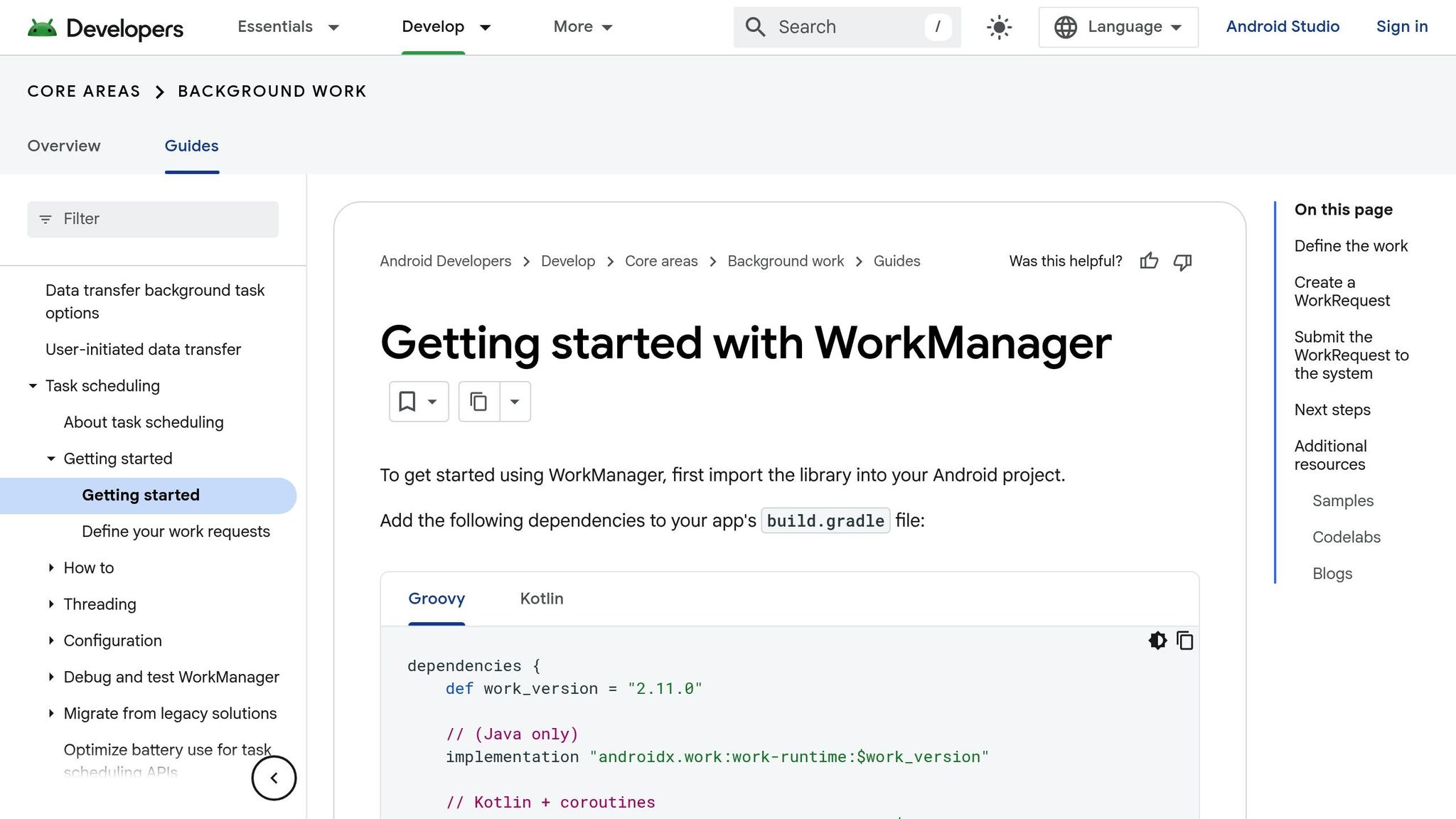
WorkManager is a reliable choice for handling background tasks, even if your app is closed or the device restarts. It automatically manages wake locks, ensuring you don’t accidentally drain the battery by holding them too long. With WorkManager, you can set conditions like RequiresCharging or NetworkType.UNMETERED so tasks only run under favorable conditions.
JobScheduler, which WorkManager uses under the hood, is another efficient option. As Manish Bannur puts it:
"The framework will be intelligent about when it executes jobs, and attempt to batch and defer them as much as possible".
Both WorkManager and JobScheduler are far more efficient than older methods like AlarmManager. The latter wakes the device from Doze mode and is best suited for precise, time-sensitive notifications, such as calendar alerts.
One key strategy is to batch related tasks. Instead of scheduling multiple sync operations that wake the device separately, combine them into one to minimize CPU and radio activations. Also, avoid marking tasks as "expedited" unless they are absolutely time-critical, as expedited tasks bypass system optimizations and consume more power.
Starting with Android 12, apps face restrictions on launching foreground services from the background. In such cases, you can use WorkManager’s setExpedited() API for high-priority tasks as a more battery-conscious alternative.
Be sure to stop services as soon as they’re no longer needed. If a service isn’t actively performing work, shut it down immediately. Monitoring task stop reasons can help you identify and eliminate inefficiencies in your code. Keep in mind that even expedited jobs may be halted by the system after just three minutes.
For specific scenarios, specialized APIs can deliver better performance. For example, use geofencing instead of constant location tracking to reduce battery usage by up to 10 times. For Bluetooth-related tasks, try the Companion Device Manager, and for video playback, implement Picture-in-Picture mode. These purpose-built solutions not only improve efficiency but also help your app avoid being flagged for excessive battery use.
Network activity is one of the biggest culprits behind battery drain in mobile apps. Every time your app connects to the internet, the cellular or Wi-Fi radio powers up and stays in a high-power state - referred to as "tail time" - for 20 to 30 seconds after the transfer ends. For example, if your app makes a one-second data transfer three times per minute, the radio remains active almost constantly, draining the battery quickly. Radios with higher bandwidth, like 5G, consume more energy than LTE, and LTE uses more than 3G. To save battery, it’s critical to reduce how often the radio wakes up and to make the most of each network session. Let’s look at some strategies to manage network requests efficiently.
One way to conserve battery is by bundling multiple requests into a single session. For instance, instead of making three separate one-second transfers in a minute, you can combine them into one three-second transfer. This approach keeps the radio in standby for the remaining 40 seconds, saving energy. While in standby, the radio uses about half the energy required for full power, and switching from standby to full power adds over two seconds of latency.
Prefetching is another smart tactic. By preloading data in bursts (1–5 MB every 2–5 minutes) when there’s a greater than 50% chance it will be used, you can cut down on repeated radio activations. If the radio is already active for another task, take advantage of that time to fetch additional data users are likely to need.
For tasks initiated by the app, use system schedulers like WorkManager with constraints such as NetworkType.UNMETERED to ensure large downloads happen only over Wi-Fi. For updates triggered by servers, replace periodic polling with Firebase Cloud Messaging (FCM). FCM only wakes the app when new data is available, avoiding unnecessary radio usage. Additionally, when syncs fail, implementing exponential back-off can extend the time between retries, reducing battery drain during network outages. These techniques not only save energy but also complement other background task optimizations.
Caching is a powerful way to cut down on network usage by serving data from local storage instead of triggering a network request, which also avoids the energy-draining tail time. An offline-first design ensures that the app checks local storage (using tools like SQLite or SharedPreferences) before reaching out to the network.
For static resources, use HTTP cache headers to minimize unnecessary new connections. Conditional requests, such as those using ETags and HTTP 304 "Not Modified" responses, allow the app to confirm whether server data has changed before downloading it again. Popular image-loading libraries like Glide and Picasso handle caching automatically, downloading images once and reusing them from local storage.
Delta updates are another efficient solution. Instead of downloading an entire dataset, only fetch the parts that have changed since the last sync. When signal strength is poor, defer network operations to avoid retries caused by fluctuating connections, which can drain the battery even faster. Use ConnectivityManager to check the network status, and if the device is offline, serve cached data instead of activating the radio unnecessarily.
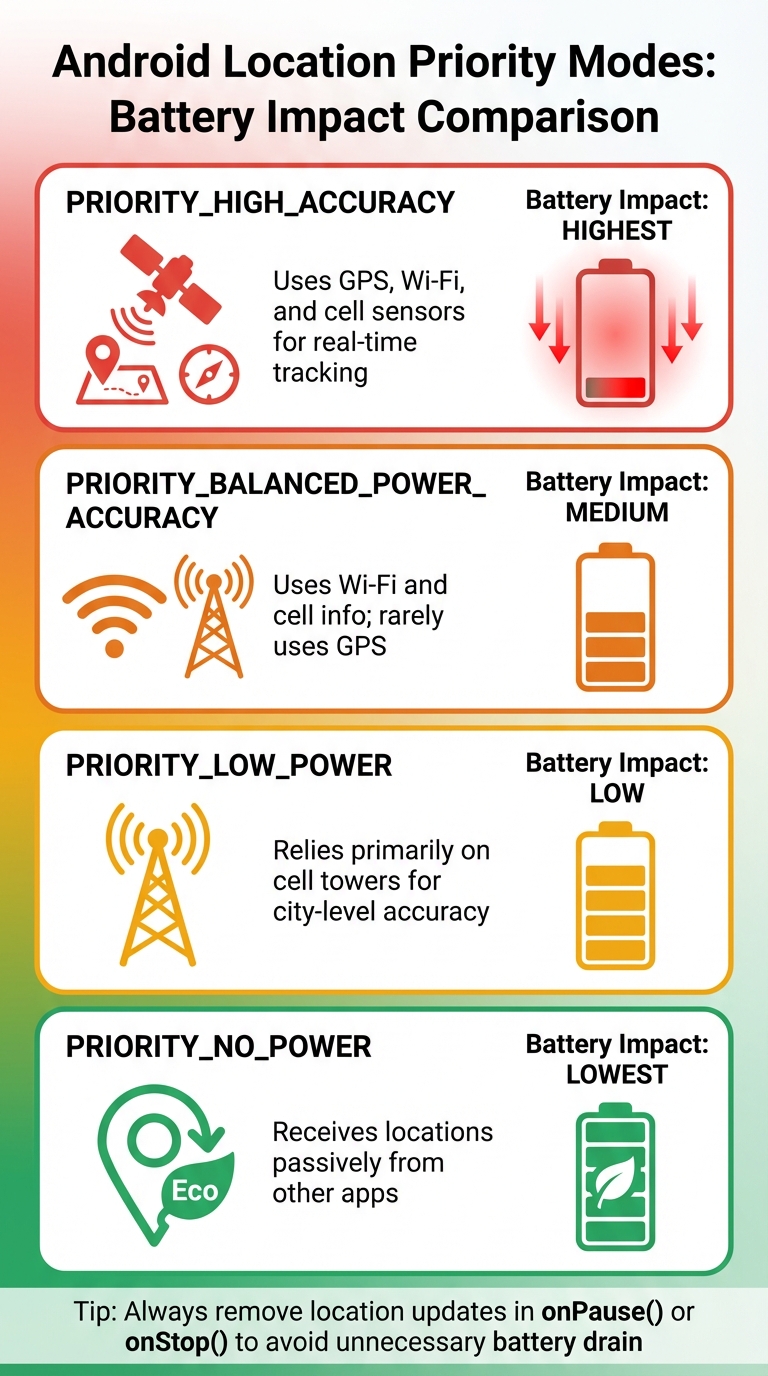
Android Location Priority Modes Battery Impact Comparison
Using location services and sensors can quickly drain a device's battery. For example, keeping GPS active for real-time tracking consumes significantly more power compared to when it's idle. But here's the good news: real-time tracking isn’t always necessary. By adopting smarter approaches like geofencing and passive updates, you can cut down on battery usage while still maintaining functionality. These techniques complement other methods, such as optimizing background tasks and managing network activity.
Geofencing offers a smarter alternative to constant GPS polling. Instead of continuously checking a user’s location, geofencing triggers updates only when the user enters or exits a specified area. This approach allows the operating system to use lower-power options like Wi-Fi and cell towers to monitor location, reducing the need for energy-intensive GPS signals.
On Android, the Geofencing API is built on the Fused Location Provider, which is designed to optimize battery performance. Adjusting geofencing responsiveness to around two minutes can improve battery efficiency by as much as 10 times on certain devices. Meanwhile, iOS provides Visit Monitoring, a geofencing-like feature that tracks frequent locations, such as home or work, and sends entry and exit notifications.
For a quick location update on iOS, the requestLocation method can fetch a single update and then automatically power down. Setting an accuracy level of approximately three kilometers instead of using kCLLocationAccuracyBest can further conserve energy. Additionally, enabling the pausesLocationUpdatesAutomatically property allows the system to deactivate location hardware when it detects that the user has stopped moving.
Another effective way to save battery is by throttling sensor usage based on user activity. For instance, if the device is stationary (e.g., connected to a fixed Wi-Fi network), you can halt GPS polling until a network change is detected. Similarly, reducing or stopping location updates when the battery level drops below 30% can help extend battery life.
Passive location updates are another great option. These updates utilize location data already requested by other apps, which minimizes additional battery consumption. On Android, you can use PRIORITY_NO_POWER to receive passive location updates and set a reasonable minimum update interval to avoid unnecessary operations when another app is frequently polling. Additionally, using setMaxUpdateDelayMillis to batch multiple location points into a single delivery allows the device to stay in a low-power state for longer periods.
| Android Location Priority | Description | Battery Impact |
|---|---|---|
PRIORITY_HIGH_ACCURACY |
Uses GPS, Wi-Fi, and cell sensors for real-time tracking | Highest |
PRIORITY_BALANCED_POWER_ACCURACY |
Uses Wi-Fi and cell info; rarely uses GPS | Medium |
PRIORITY_LOW_POWER |
Relies primarily on cell towers for city-level accuracy | Low |
PRIORITY_NO_POWER |
Receives locations passively from other apps | Lowest |
To avoid unnecessary battery drain, always remove location updates in onPause() or onStop() when the app is not actively in use. Additionally, set timeouts using setDurationMillis or setExpirationDuration to ensure location requests don’t run indefinitely due to coding errors. These small adjustments can make a noticeable difference in how users perceive your app's impact on their device's battery life.
Once you've tackled inefficiencies in background processes, network usage, and location services, the next step is to refine your code and UI design. Efficient coding practices and a thoughtfully designed interface can go a long way in conserving battery life. Every extra computation or unnecessary visual element adds to power consumption, so even small tweaks can make a noticeable difference.
Dark mode can significantly reduce battery usage on OLED screens because these displays light up individual pixels. Dark pixels consume minimal power, and true black pixels don't use any power at all. At maximum brightness, dark mode could save up to 47% of battery life, with typical indoor settings offering savings of 3%–9%. Apps with predominantly dark backgrounds may even achieve up to 70% savings. Vaibhav Gautam, an engineer on Apple's Software Power team, highlights this benefit:
"For users who prefer Dark Mode, this is a tremendous opportunity to save them some battery drain and it can reduce thermal load too".
To implement dark mode effectively, use dynamic colors that automatically adapt to light and dark themes, rather than hard-coding color values. Include alternate image and media assets optimized for dark mode to maintain visual clarity. For apps that rely heavily on maps, offering a dark map theme can reduce the energy demands of frequent screen redrawing. Additionally, lowering the frame rate of secondary UI animations from 60fps to 30fps can cut battery usage by up to 20%. These adjustments work hand-in-hand with strategies aimed at reducing background and network-related power drain.
Lazy loading is a smart way to manage resources, as it delays loading assets until they're needed. This not only reduces memory usage but also minimizes battery drain. Unused resources should be released immediately, and scalable vector graphics can be used to lower processing power requirements. For scrolling lists, load only the visible items first, deferring off-screen items until the user scrolls to them.
Choosing efficient image formats like WebP or HEIC can also make a difference, as they reduce file sizes without sacrificing quality, thereby lowering the energy needed for processing and rendering. Canceling pending downloads for off-screen items helps avoid unnecessary processing.
Hardware acceleration is another key tool. By using GPU acceleration for animations and transitions, you can shift the workload away from the CPU, which is generally less energy-efficient for graphics tasks. Reducing "overdraw" by limiting overlapping UI layers and opting for lightweight UI components can further decrease both GPU and CPU strain. Lastly, when your app's interface isn't visible, pause content updates, animations, and location requests to avoid wasting battery power.
Once you've fine-tuned your app's code, user interface, and background processes, the next step is to ensure those efforts translate into better battery performance. Testing and monitoring are essential for uncovering hidden inefficiencies and confirming that your app is truly energy-efficient. These processes help verify that optimizations across background tasks, network usage, and sensor activities work together to conserve energy.
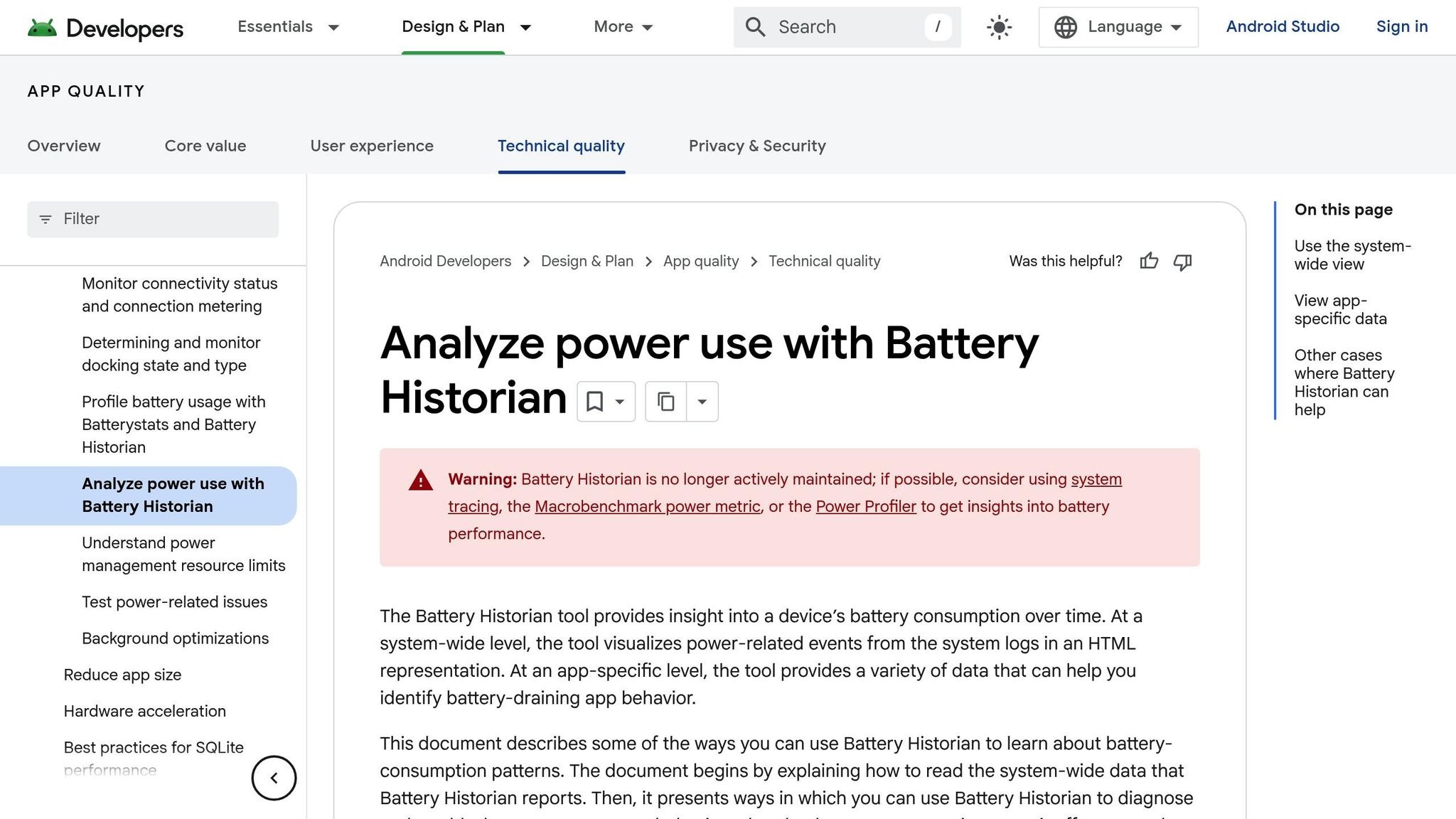
For Android developers, the Energy Profiler in Android Studio is a great starting point. It provides real-time insights into the energy impact of CPU usage, network activity, and GPS functions. To minimize performance overhead during testing, use profileable builds based on release variants. Additionally, Battery Historian is an invaluable tool for analyzing bug reports, offering a detailed view of system-wide battery events. It can highlight issues such as unnecessary wake locks or excessive sensor polling.
On the iOS side, Instruments comes equipped with an Energy Diagnostics template that tracks CPU usage, network activity, and screen brightness. The Location Energy Instrument is particularly useful for assessing the energy cost of Core Location requests. To capture realistic energy data during device sleep, enable on-device logging through Settings > Developer > Logging. Another handy tool is the Core Animation template with the "Flash Updated Regions" option, which helps identify redundant screen updates - those silent battery drainers. These tools do more than just diagnose problems; they lay the groundwork for tracking key battery-related metrics.
Once diagnostic tools have identified potential energy drains, it's time to focus on measurable metrics to validate your optimizations. Start by monitoring the energy usage of background tasks. On Android, APIs like WorkInfo.getStopReason() can reveal if tasks are being terminated due to excessive resource usage or timeouts. Network activity is another critical area; mobile radios stay active briefly after data transmissions, meaning even infrequent requests can add up and impact battery life. For iOS, tools like MetricKit’s cumulativeBackgroundLocationTime property measure how long location services are running in the background.
Studies show that over 47% of mobile energy issues stem from applications, not the operating system. Understanding the difference between dynamic and fixed energy costs helps pinpoint inefficiencies. By consistently tracking these metrics, you can ensure that your optimizations - whether it's enabling Dark Mode, reducing animation frame rates, or batching network requests - are achieving meaningful battery savings. These metrics confirm whether your efforts are paying off.
At Dots Mobile, we make testing and monitoring a core part of our development process. This ensures our apps not only perform well but also conserve battery life, delivering a great experience for our users.
Boosting performance while conserving battery life is achievable by batching tasks and cutting down on unnecessary operations. For instance, grouping network requests and background tasks reduces the overhead of activating system resources like the CPU and cellular radio. This approach lets your app spend more time in low-power states, which is great for both efficiency and user satisfaction.
"Even small inefficiencies in apps add up, significantly affecting battery life, performance, and responsiveness. As an app developer, you have an obligation to make sure your app runs as efficiently as possible." – Apple
Every time data is transferred, the radio stays active longer than it needs to. By bundling these transfers, you give the radio more opportunities to return to standby mode. Other strategies, such as reducing location precision, stopping sensor updates promptly, and enabling dark mode, can significantly cut down battery usage without compromising the user experience. These efforts not only save power but also improve the app's overall performance.
The advantages go far beyond just battery life. Users expect their devices to last all day. Apps that respect this expectation are more likely to retain users, while battery-draining apps risk being uninstalled. Additionally, efficient apps run cooler, perform better on slower networks, and avoid system terminations that users might mistake for crashes.
At Dots Mobile, we prioritize battery efficiency at every step of the development process - from design to testing and deployment. This ensures our apps deliver top-tier performance while managing energy use responsibly, meeting the demands of modern mobile devices.
WorkManager is a handy tool for managing background tasks while keeping battery usage in check. It lets you schedule tasks that can wait and ensures they respect specific device conditions. For instance, you can configure tasks to run only when the device is plugged in, connected to Wi-Fi, or not actively being used.
Another big plus is how it boosts efficiency by grouping tasks together and making sure they continue even after a device restart. This approach cuts down on unnecessary wake-ups and reduces network activity, helping your app operate seamlessly without putting extra strain on the battery.
Geofencing is a smart way to save battery life by cutting down on constant GPS usage. Instead of keeping location services running nonstop, it only activates when your device enters or leaves specific areas that have been set up in advance. This approach keeps power consumption low while still delivering precise location-based features.
By targeting specific moments - like when you cross into or out of a designated zone - geofencing provides an energy-efficient alternative for apps that depend on location tracking.
Dark mode is a smart choice for conserving battery life on devices with OLED screens. Here's why: in OLED displays, each pixel lights up individually. When darker colors or black are displayed, those pixels require minimal or no power, which significantly lowers the screen's energy use. This feature makes dark mode particularly effective for stretching battery life on OLED devices.


