
February 3, 2026
⯀
9
min


SwiftUI makes building iOS interfaces faster and easier by using a declarative approach. Instead of writing step-by-step instructions, you describe how the UI should look, and SwiftUI handles updates automatically. This reduces code, minimizes errors, and improves efficiency. Key features include:
@State and @Binding.VStack, HStack, ZStack) instead of complex Auto Layout.SwiftUI works best for new projects but can also integrate into existing UIKit code. It’s ideal for creating consistent, modular, and adaptive designs across Apple platforms like iOS, macOS, and watchOS.
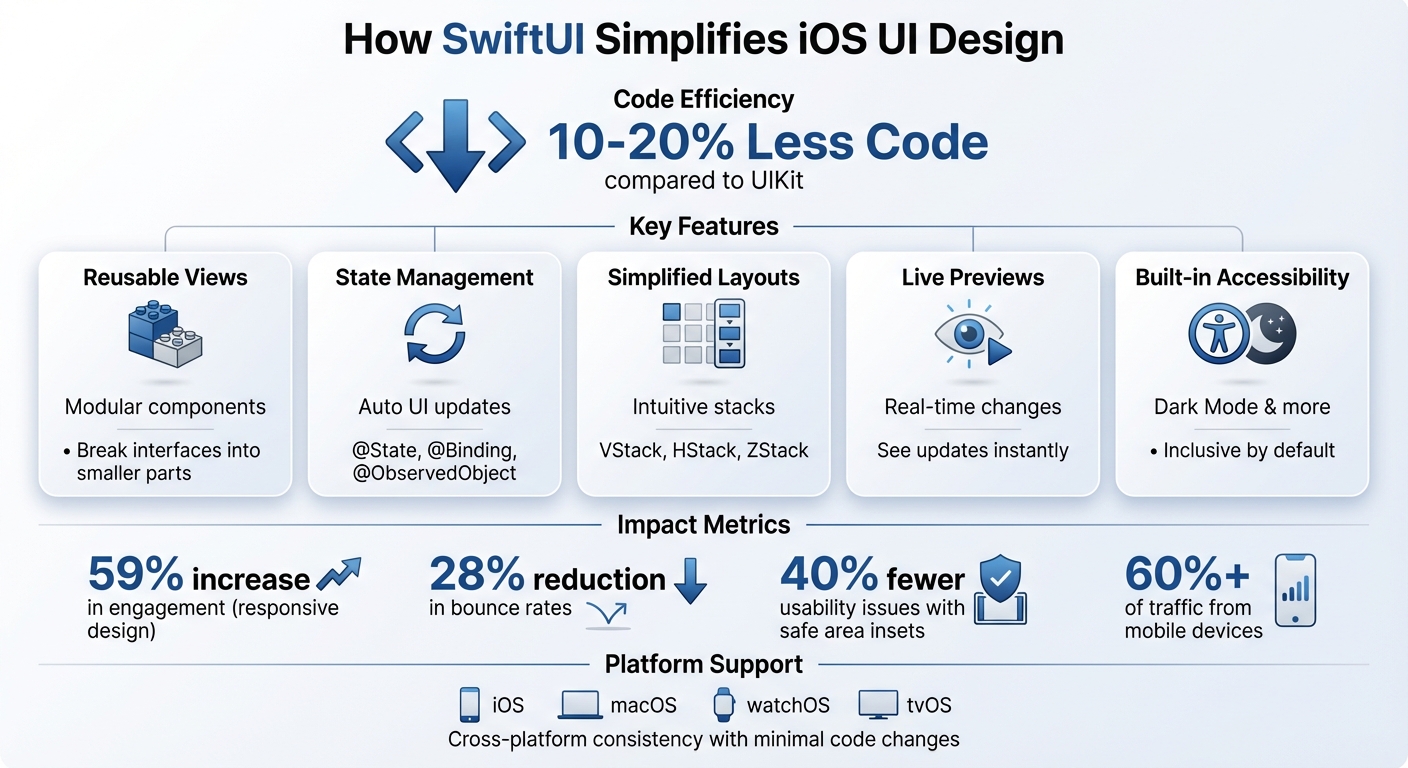
SwiftUI vs UIKit: Code Reduction and Development Benefits Comparison
At the heart of SwiftUI lies the View protocol, which encourages a building-block approach to UI design. Instead of crafting massive, monolithic components, you create smaller, self-contained views - like Text, Button, or layout containers - and then piece them together to form intricate interfaces. This modular design not only keeps your codebase clean and organized but also ensures a consistent look and feel across your app. Plus, it naturally supports smoother state handling and layout adjustments.
SwiftUI reimagines how state and UI interact by making the interface a direct reflection of your app's data. Whenever the state changes, SwiftUI automatically updates the relevant parts of the UI - no need for tedious manual updates or worrying about synchronization errors. Using property wrappers like @State, @Binding, @ObservedObject, and @EnvironmentObject, developers can efficiently manage state transitions. This approach doesn't just streamline state management; it also simplifies how UI elements are presented and structured.
Say goodbye to the complexities of Auto Layout! SwiftUI introduces a more intuitive way to design layouts through container views like VStack, HStack, and ZStack. These containers make arranging elements straightforward, while chaining modifiers - like adding padding, tweaking fonts, or setting backgrounds - keeps your code concise and easy to follow. In fact, creating layouts with SwiftUI often requires just a fraction (10–20%) of the code you'd need with UIKit.
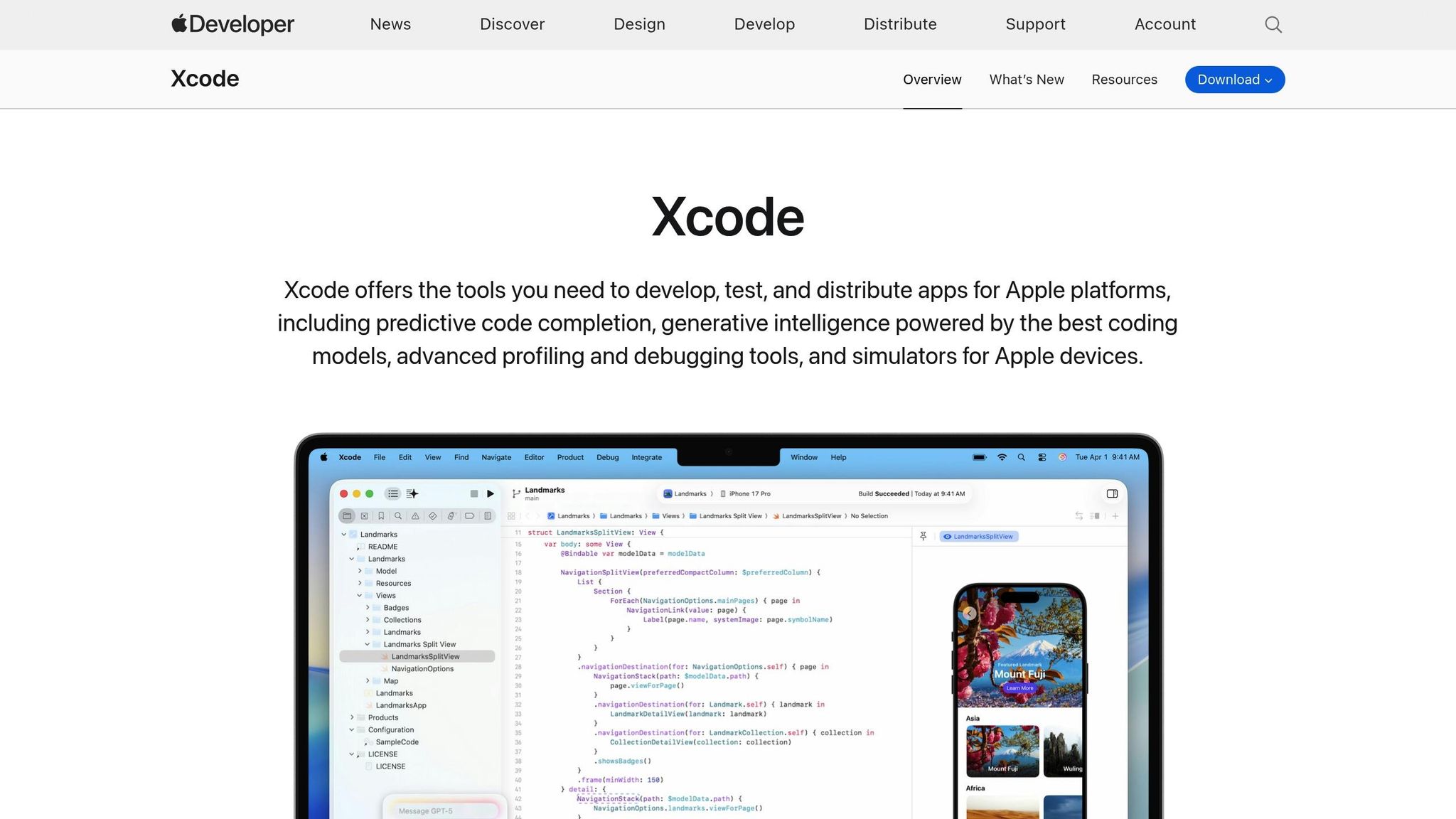
Xcode's Live Preview feature, introduced with the #Preview macro in Xcode 15, lets you see real-time UI updates on the canvas without needing to launch the full app. This means you can experiment and see the results of your design tweaks instantly. Since the preview uses your actual project code, it provides an accurate reflection of the final UI. What’s more, Xcode only recompiles the parts of your code that have changed, making the process faster and more efficient. The interactive canvas offers three distinct modes: Live Mode, where you can directly interact with the view; Selection Mode, which shows a static snapshot and highlights the corresponding code; and Variants Mode, which displays multiple UI variations simultaneously, like Dark Mode or different dynamic type settings. These tools make it easy to refine your UI, enabling smoother animations and better accessibility adjustments.
SwiftUI’s declarative syntax takes the complexity out of adding animations. You simply define how the UI should behave, and the system handles the rest, ensuring smooth transitions - even during user interactions. Animations can be applied to nearly any control, and SwiftUI’s built-in support for gestures, transitions, and animations ensures your app feels polished and responsive. Combined with live previews, these features make the design process faster and more seamless.
SwiftUI comes with built-in support for accessibility, dynamic type, and Dark Mode, so you don’t need to manually adjust your designs for inclusivity and adaptability. Xcode’s Variants Mode further enhances this by letting you preview your interface under different accessibility settings and appearance modes. This makes it easy to spot and fix any design issues quickly.
SwiftUI's straightforward design and functionality make it a go-to framework for building modern apps. Here’s how it simplifies common development tasks.
Forget the hassle of verbose lifecycle methods - SwiftUI allows you to declare your UI and handles updates automatically. Whether you're creating navigation, lists, or forms, tools like NavigationStack, List, and Form make the process seamless. Core elements like Text, Button, VStack, HStack, and ZStack provide a solid foundation for designing interfaces. With the help of modifiers, you can tweak the appearance and behavior of these elements without cluttering your code, resulting in a cleaner, more readable structure.
Lifecycle methods such as onAppear and onDisappear simplify managing side effects, allowing you to focus on features while keeping the UI aligned with your app's state. This streamlined approach isn't limited to basic screens - it also supports the creation of uniform, reusable components that reflect your brand.
SwiftUI's component-based architecture is perfect for maintaining a consistent look and feel across your app. You can design reusable elements once and apply them everywhere, eliminating redundancy while ensuring a cohesive user experience.
Use design tokens - like colors, typography, and spacing - to support light and dark modes. Organize these tokens in separate Swift files for easy management. By passing variables such as text, colors, or actions, a single component (like a custom LargeButton) can serve multiple purposes, adapting to different contexts effortlessly.
Property wrappers like @State and @Binding add flexibility and keep your components easy to maintain. Xcode's "Extract Subview" feature further simplifies refactoring, enabling you to break down complex interfaces into smaller, reusable pieces. At Dots Mobile, these techniques help us create scalable apps that stay true to our brand identity.
Responsive design is practically built into SwiftUI, making it easy to create apps that look great on all iPhone models and orientations. By defining what your UI should do, SwiftUI automatically adjusts layouts to fit the available space.
Tools like GeometryReader allow for dynamic view adjustments, while Environment values help your app respond intelligently to varying screen configurations. Flexible layouts using stack views and Spacer ensure your interface works across different devices. Safe area insets prevent content from being obscured by notches or rounded corners, reducing usability issues by 40%.
Responsive design doesn't just improve usability - it also boosts engagement by 59% and reduces bounce rates by 28%. With mobile devices accounting for over 60% of web traffic, getting this right is crucial. Xcode's Preview feature makes it easy to test layouts across multiple screen sizes at once, helping you catch and fix issues early in the development process.
SwiftUI has its own set of strengths and challenges, which can guide how and when to use it effectively across different types of projects.
SwiftUI shines brightest when you're starting a project from scratch. Its declarative syntax allows for faster development and cleaner, more maintainable code, especially without the complications of legacy systems. It’s also a great fit for modular projects that need to work seamlessly across Apple platforms like iOS, macOS, tvOS, and watchOS. With minimal code tweaks, you can ensure consistency across all these platforms.
One of SwiftUI's standout features is Xcode Previews, which lets you see real-time updates to your UI as you code. This interactive canvas speeds up the design process, helps catch issues early, and ensures a more efficient workflow. In short, SwiftUI delivers speed, simplicity, and cross-platform uniformity.
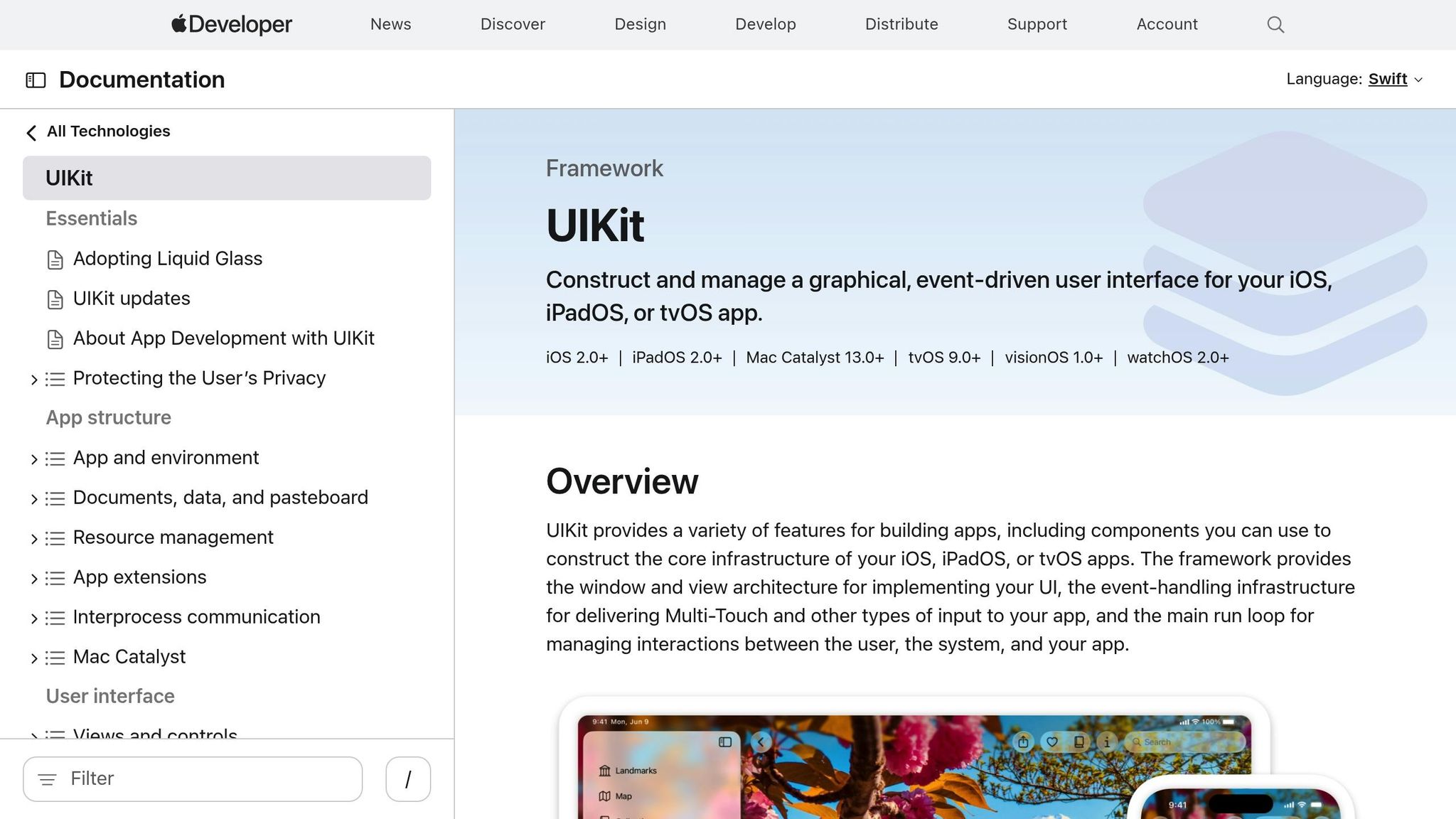
You don’t have to completely overhaul your app to incorporate SwiftUI. It works well for incremental adoption in existing UIKit projects. For example, you can embed SwiftUI views into your UIKit app using UIHostingController. This approach works for entire screens or smaller components, allowing SwiftUI views to coexist with UIKit elements seamlessly.
For UIKit elements that don’t have direct SwiftUI counterparts, you can use UIViewRepresentable and UIViewControllerRepresentable to bridge the gap. Additionally, starting with iOS 16, UIHostingConfiguration simplifies the process of creating custom content for table and collection view cells, letting you declare cell content inline using SwiftUI.
By integrating SwiftUI into UIKit, you can maintain consistent design across your app. Unified color schemes, typography, and spacing make updates smoother, while combining SwiftUI’s flexibility with UIKit’s robustness ensures a balanced approach.
When it comes to production apps, SwiftUI offers clear benefits: faster development, cleaner code, and automatic UI updates based on state changes. However, there are trade-offs to consider. Early versions of SwiftUI (notably in iOS 13.x) were plagued by stability issues, such as unexpected crashes and glitchy animations. Additionally, if your app needs to support older iOS versions, you might miss out on some of SwiftUI’s newer features.
Switching from UIKit to SwiftUI can also come with a learning curve, especially for teams unfamiliar with its declarative approach. Overusing @Binding in large apps can lead to state management headaches. And for certain use cases - like highly customized controls - UIKit might still be the better option.
Ultimately, deciding how much to adopt SwiftUI depends on your team’s expertise, project timeline, and the level of support needed for older systems. By carefully weighing these factors, you can strike the right balance between leveraging SwiftUI’s modern capabilities and addressing the specific needs of your app.
Dots Mobile combines a deep understanding of mobile development with a practical approach to innovation, ensuring scalable, reliable iOS interfaces that work for both new and legacy projects.
SwiftUI has reimagined the way developers approach iOS UI design. By using a declarative syntax, it allows you to focus on what the interface should look like, rather than the nitty-gritty of how to build it. This approach not only trims down the codebase by 10–20% but also helps minimize bugs - making development more efficient.
Features like live previews, reusable components, and built-in support for Dark Mode make it even more appealing. These tools speed up development by instantly showing changes and ensuring layouts adapt seamlessly across different devices.
Whether you're starting a project from the ground up or integrating it into an existing UIKit-based app, SwiftUI's lightweight and modular structure takes the headache out of crafting complex interfaces. The result? Cleaner, more maintainable code that’s easier to work with.
SwiftUI makes managing state a breeze with its declarative tools like @State, @Binding, and ObservableObject. These property wrappers take care of updating the data and ensuring the UI reflects those changes automatically - no need for writing manual, event-driven code.
In contrast to UIKit, which depends heavily on lifecycle methods like viewDidLoad or viewWillAppear, SwiftUI minimizes repetitive code. It allows developers to concentrate on creating dynamic and responsive interfaces. This approach not only simplifies handling complex app states but also enhances the clarity and organization of your code.
Yes, you can bring SwiftUI into your existing UIKit project without starting from scratch. By using UIHostingController, you can embed SwiftUI views right into your UIKit interface. This makes it possible to introduce SwiftUI step by step, rather than overhauling your entire app.
SwiftUI integrates smoothly with UIKit components, allowing both frameworks to work side by side. This hybrid approach is perfect for upgrading specific parts of your app with SwiftUI's modern declarative syntax while keeping the rest of your UIKit codebase intact.
SwiftUI’s live previews in Xcode make creating user interfaces quicker and easier. With real-time visual feedback, you can instantly see how changes in your code impact the UI. Plus, you can experiment with different device sizes, orientations, and data scenarios - all without needing to run the app on a simulator or an actual device.
Another great perk? Live previews let you interact directly with the interface while simultaneously highlighting the relevant code. This simplifies the workflow and saves time. They’re also simple to share with team members, which helps streamline collaborative design and iteration.


